Developer Guide
- Acknowledgements
- Key Updates in Implementation
- Setting up, getting started
- Design
- Implementation
- Documentation, logging, testing, configuration, dev-ops
- Appendix: Requirements
-
Appendix: Instructions for manual testing
- Launch and shutdown
- Deleting a tenant
- Adding a tenant
- Archiving a tenant
- Unarchiving a tenant
- Toggling between active and archived views
- Editing a tenant
- Filtering tenants by address
- Marking a tenant as paid
- Marking a tenant as unpaid
- Viewing a tenant’s address on Google Maps
- Listing all tenants
- Clearing all tenants
- Saving data
Acknowledgements
- The TenantTrack application is adapted from the SE-EDU AddressBook-Level3 project.
- Architecture patterns, component structuring, and some utility functions were inspired by the original project.
- Code and documentation references were derived and modified from AddressBook-Level3 (UG, DG).
- New features like archiving, filtering, and payment tracking were implemented independently to suit the landlord-tenant management domain.
Key Updates in Implementation
Replaced Domain Entity
- Replaced
PersonwithTenant. - The
AddressBookclass is replaced byTenantTracker. - Model classes like
Tenant,Name,Phone,Email, andAddressare customized for rental contact management.
Newly Added Features (Commands)
-
archive: Archive a tenant record. -
unarchive: Unarchive a previously archived tenant. -
togglearchive: Toggle between active tenant list and archived tenant list. -
paid: Mark a tenant as having paid their rent with an icon. -
unpaid: Mark a tenant as not having paid their rent by removing the paid icon. -
filter: Filter tenants based on address. -
map: View tenants or properties on a map UI (implementation inferred fromMapCommand).
Each of these has corresponding command classes and parsers in logic.commands and logic.parser respectively.
Setting up, getting started
Refer to the guide Setting up and getting started.
Design
 Tip: The
 .puml files used to create diagrams in this document docs/diagrams folder. Refer to the
PlantUML Tutorial at se-edu/guides to learn how to create
and edit diagrams.
Architecture
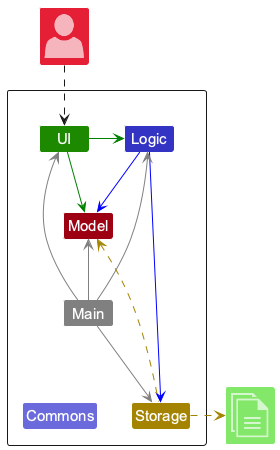
The Architecture Diagram given above explains the high-level design of the App.
Given below is a quick overview of main components and how they interact with each other.
Main components of the architecture
Main (consisting of
classes Main
and MainApp) is
in charge of the app launch and shut down.
- At app launch, it initializes the other components in the correct sequence, and connects them up with each other.
- At shut down, it shuts down the other components and invokes cleanup methods where necessary.
The bulk of the app’s work is done by the following four components:
-
UI: The UI of the App. -
Logic: The command executor. -
Model: Holds the data of the App in memory. -
Storage: Reads data from, and writes data to, the hard disk.
Commons represents a collection of classes used by multiple other components.
How the architecture components interact with each other
The Sequence Diagram below shows how the components interact with each other for the scenario where the user issues
the command delete 1.
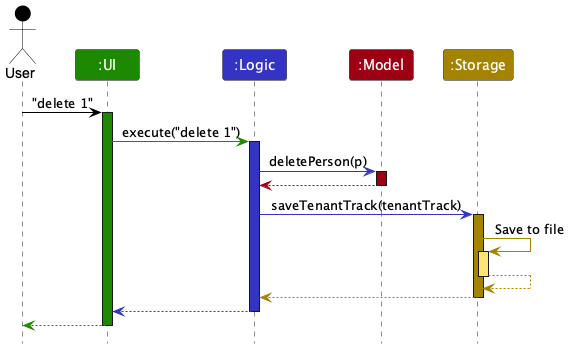
Each of the four main components (also shown in the diagram above),
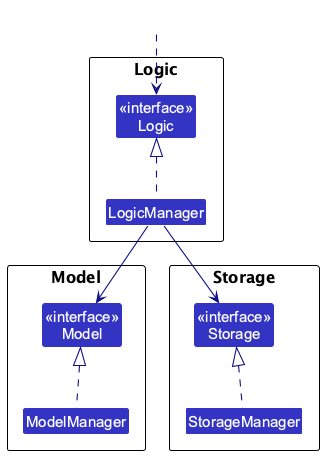
- defines its API in an
interfacewith the same name as the Component. - implements its functionality using a concrete
{Component Name}Managerclass (which follows the corresponding APIinterfacementioned in the previous point.
For example, the Logic component defines its API in the Logic.java interface and implements its functionality using
the LogicManager.java class which follows the Logic interface. Other components interact with a given component
through its interface rather than the concrete class (reason: to prevent outside component’s being coupled to the
implementation of a component), as illustrated in the (partial) class diagram below.
The sections below give more details of each component.
UI component
The API of this component is specified
in Ui.java
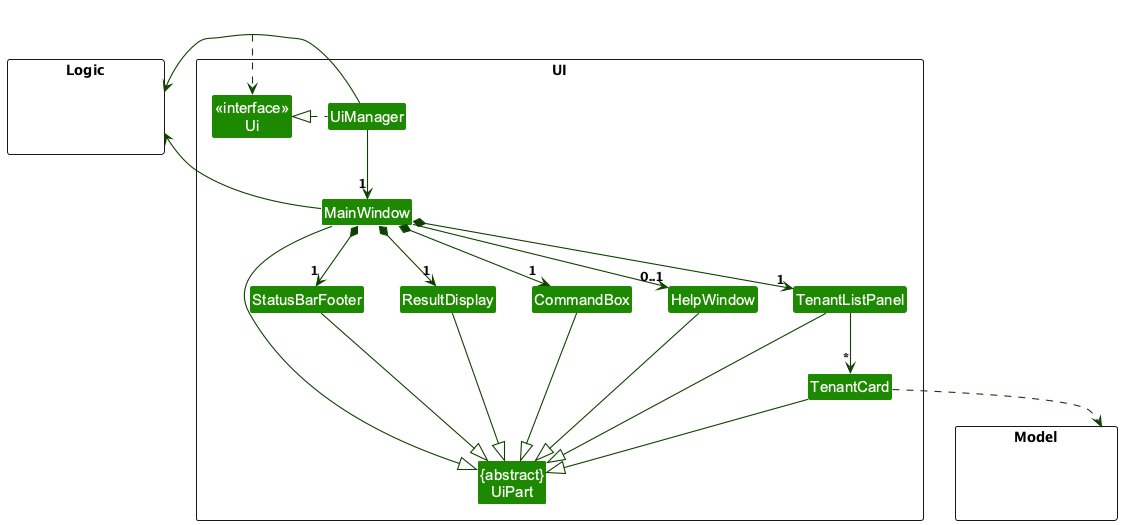
The UI consists of a MainWindow that is made up of parts
e.g.CommandBox, ResultDisplay, TenantListPanel, StatusBarFooter etc. All these, including the MainWindow,
inherit from the abstract UiPart class which captures the commonalities between classes that represent parts of the
visible GUI.
The UI component uses the JavaFx UI framework. The layout of these UI parts are defined in matching .fxml files that
are in the src/main/resources/view folder. For example, the layout of
the MainWindow
is specified
in MainWindow.fxml
The UI component,
- executes user commands using the
Logiccomponent. - listens for changes to
Modeldata so that the UI can be updated with the modified data. - keeps a reference to the
Logiccomponent, because theUIrelies on theLogicto execute commands. - depends on some classes in the
Modelcomponent, as it displaysPersonobject residing in theModel.
Logic component
API : Logic.java
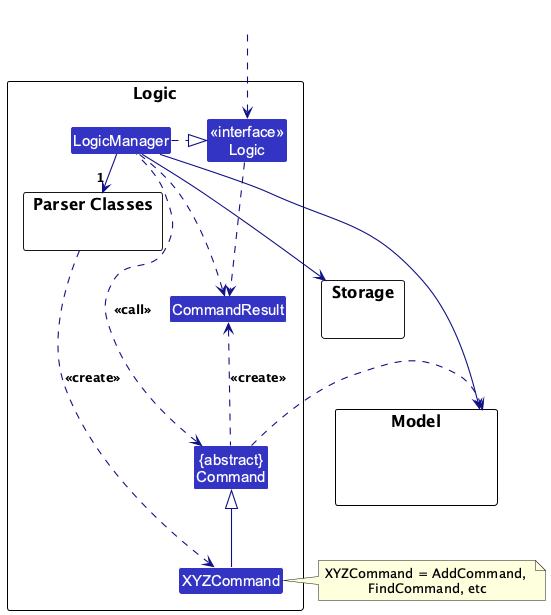
Here’s a (partial) class diagram of the Logic component:
The sequence diagram below illustrates the interactions within the Logic component, taking execute("delete 1") API.
call as an example.
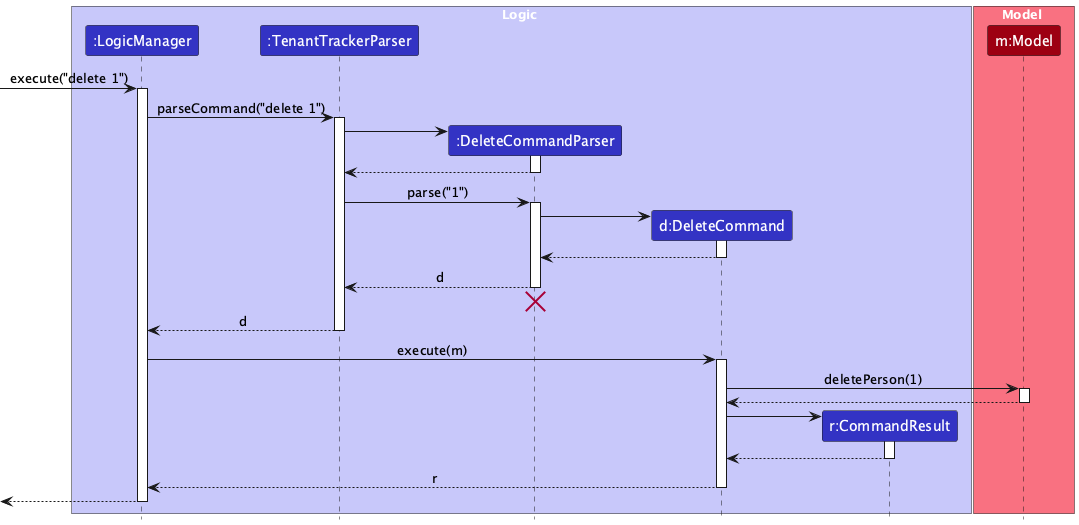
 Note: The lifeline for
 DeleteCommandParser should end at the destroy marker (X) but due to a limitation of PlantUML, the lifeline continues till the end of diagram.
How the Logic component works:
- When
Logicis called upon to execute a command, it is passed to anTenantTrackerParserobject which in turn creates a parser that matches the command (e.g.,DeleteCommandParser) and uses it to parse the command. - This results in a
Commandobject (more precisely, an object of one of its subclasses e.g.,DeleteCommand) which is executed by theLogicManager. - The command can communicate with the
Modelwhen it is executed (e.g. to delete a person).
Note that although this is shown as a single step in the diagram above (for simplicity), in the code it can take several interactions (between the command object and theModel) to achieve. - The result of the command execution is encapsulated as a
CommandResultobject which is returned back fromLogic.
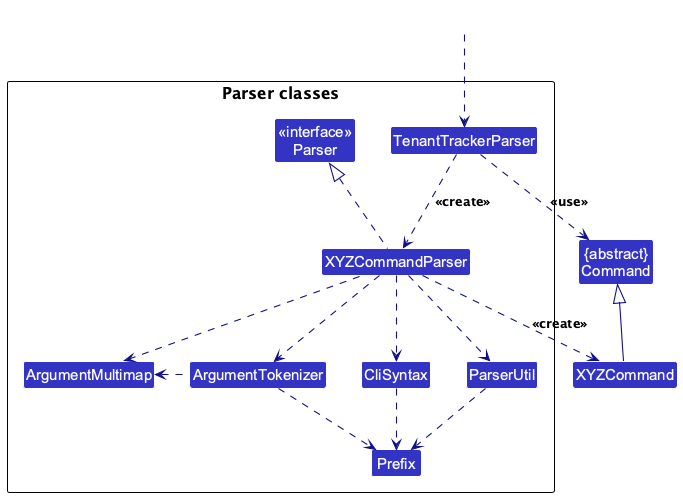
Here are the other classes in Logic (omitted from the class diagram above) that are used for parsing a user command:
How the parsing works:
- When called upon to parse a user command, the
TenantTrackerParserclass creates anXYZCommandParser(XYZis a placeholder for the specific command name e.g.,AddCommandParser) which uses the other classes shown above to parse the user command and create aXYZCommandobject (e.g.,AddCommand) which theTenantTrackerParserreturns back as aCommandobject. - All
XYZCommandParserclasses (e.g.,AddCommandParser,DeleteCommandParser, …) inherit from theParserinterface so that they can be treated similarly where possible e.g, during testing.
Model component
API : Model.java
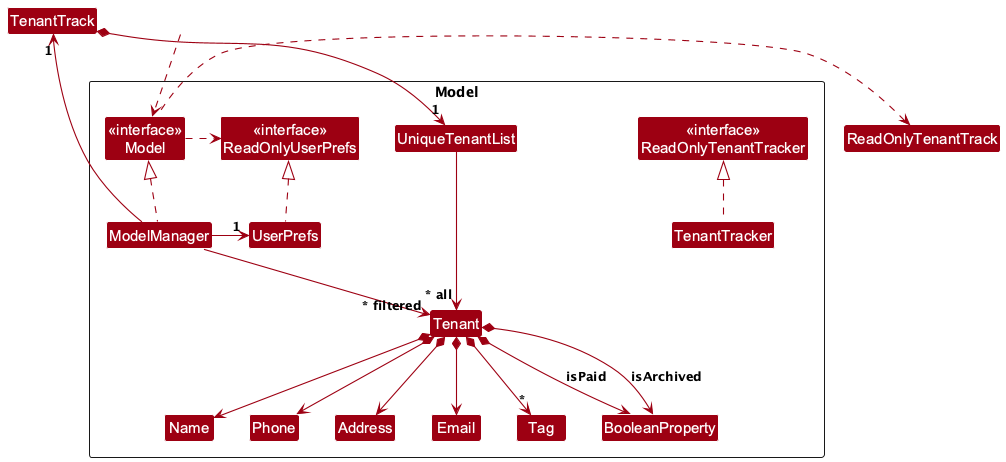
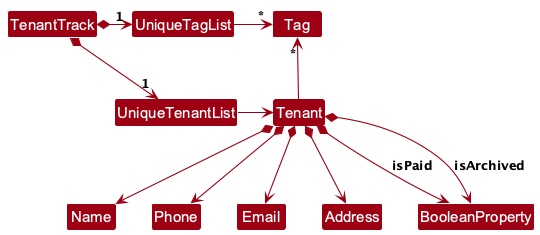
The Model component,
- stores the tenant tracker data i.e., all
Tenantobjects (which are contained in aUniqueTenantListobject). - stores the currently ‘selected’
Tenantobjects (e.g., results of a search query) as a separate filtered list which is exposed to outsiders as an unmodifiableObservableList<Tenant>that can be ‘observed’ e.g. the UI can be bound to this list so that the UI automatically updates when the data in the list change. - stores a
UserPrefobject that represents the user’s preferences. This is exposed to the outside as aReadOnlyUserPrefobjects. - does not depend on any of the other three components (as the
Modelrepresents data entities of the domain, they should make sense on their own without depending on other components)
Note: An alternative (arguably, a more OOP) model is given below. It has a Tag list in the TenantTracker, which Tenant references. This allows TenantTracker to only require one Tag object per unique tag, instead of each Tenant needing their own Tag objects.clear clear
 <!–
<!– –>
</div>
Storage component
API : Storage.java
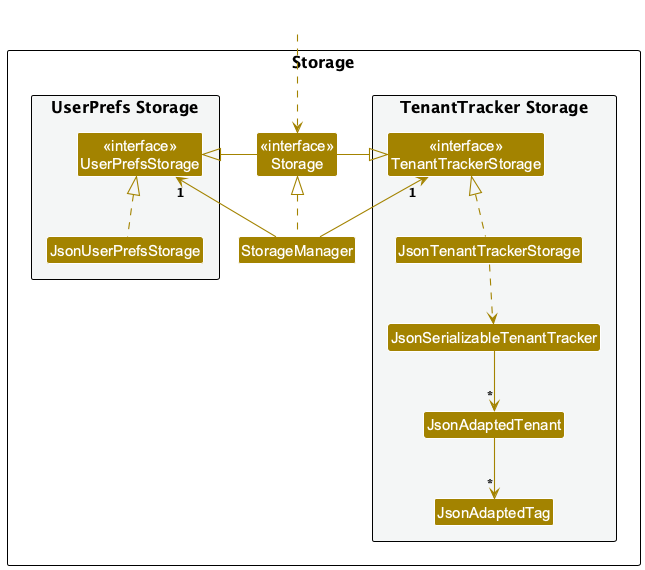
The Storage component,
- can save both tenant tracker data and user preference data in JSON format, and read them back into corresponding objects.
- inherits from both
TenantTrackerStorageandUserPrefStorage, which means it can be treated as either one (if only the functionality of only one is needed). - depends on some classes in the
Modelcomponent (because theStoragecomponent’s job is to save/retrieve objects that belong to theModel)
Common classes
Classes used by multiple components are in the seedu.address.commons package.
Implementation
This section describes some noteworthy details on how certain features are implemented.
Archive/Unarchive/Toggle Archive Tenants
Implementation
The ArchiveCommand, UnarchiveCommand, and ToggleArchiveCommand allow users to manage the archive status of tenants. These commands are useful for landlords who want to retain historical records of tenants without cluttering the active tenant list.
- The
ArchiveCommandmarks a tenant as archived. - The
UnarchiveCommandrestores a previously archived tenant to the active list. - The
ToggleArchiveCommandswitches between displaying archived and active tenants in the tenant list.
These commands are implemented as part of the Command hierarchy. They interact with the Model component to update or retrieve the Tenant’s isArchived property.
Key Classes and Methods
-
ArchiveCommand:- Executes the archive operation.
- Implements the
Commandinterface. - Contains the tenant index to be archived.
-
UnarchiveCommand:- Executes the unarchive operation.
- Implements the
Commandinterface. - Contains the tenant index to be unarchived.
-
ToggleArchiveCommand:- Toggles the display between archived and active tenants.
- Implements the
Commandinterface.
-
ArchiveCommandParser:- Parses user input to create an
ArchiveCommandobject.
- Parses user input to create an
-
UnarchiveCommandParser:- Parses user input to create an
UnarchiveCommandobject.
- Parses user input to create an
-
Model:- Provides the
archiveTenant(),unarchiveTenant(), andtoggleArchiveView()methods to update or retrieve theTenant’sisArchivedproperty.
- Provides the
-
Tenant:- Contains the
BooleanProperty isArchivedfield, which is updated when a tenant is archived or unarchived.
- Contains the
How It Works
-
User Input:
- For
ArchiveCommand: The user enters a command likearchive 3to archive the 3rd tenant in the displayed list. - For
UnarchiveCommand: The user enters a command likeunarchive 2to unarchive the 2nd tenant in the archived list. - For
ToggleArchiveCommand: The user enters a command liketogglearchiveto switch between viewing archived and active tenants.
- For
-
Parsing:
- The
ArchiveCommandParserparses the input and creates anArchiveCommandobject with the specified tenant index. - The
UnarchiveCommandParserparses the input and creates anUnarchiveCommandobject with the specified tenant index. - The
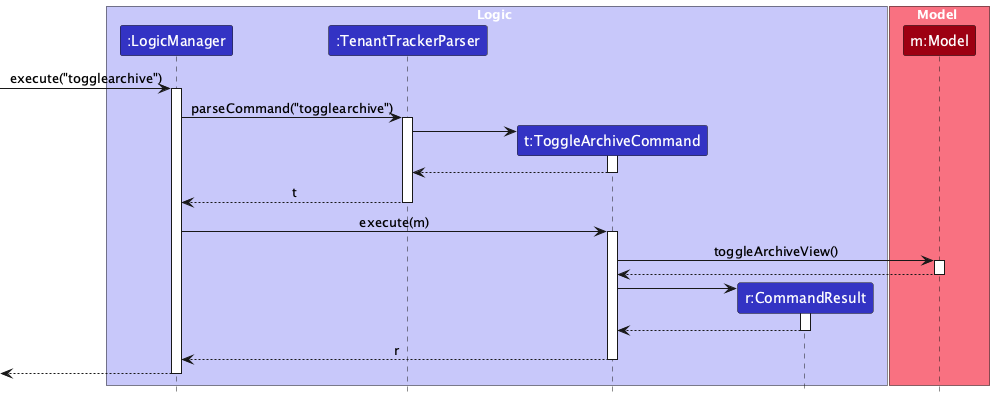
ToggleArchiveCommanddoes not require arguments and is created directly.
- The
-
Execution:
- The
ArchiveCommandretrieves the tenant from theModelusing the index and updates theisArchivedproperty totrueby callingModel#archiveTenant(). - The
UnarchiveCommandretrieves the tenant from the archived list in theModelusing the index and updates theisArchivedproperty tofalseby callingModel#unarchiveTenant(). - The
ToggleArchiveCommandswitches the view between archived and active tenants by callingModel#toggleArchiveView().
- The
-
Feedback:
- A success message is displayed to the user, confirming the operation.
Example Usage Scenarios
-
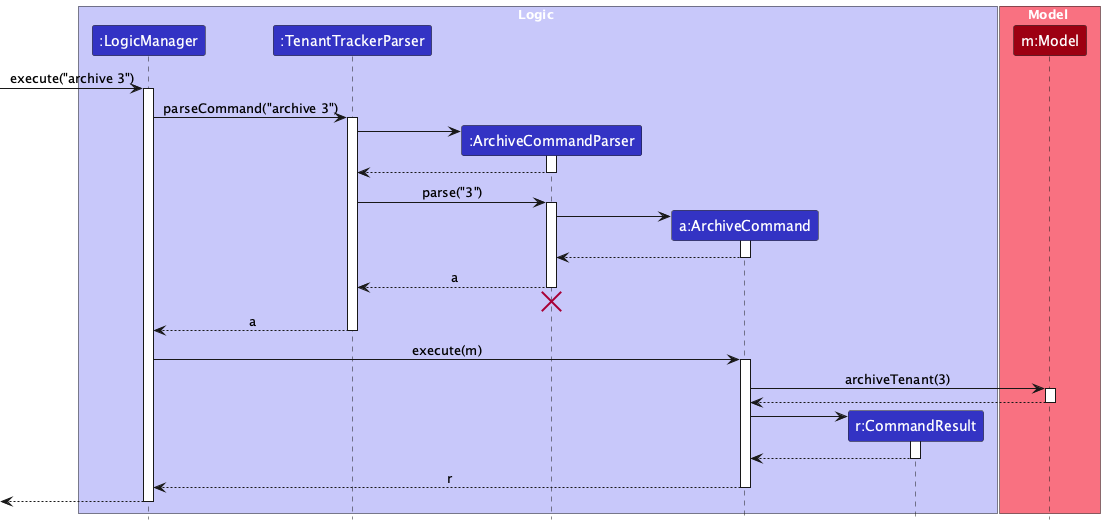
ArchiveCommand:
- The user enters the command
archive 3. - The
Logiccomponent passes the command to theTenantTrackerParser, which uses theArchiveCommandParserto parse the input. - The
ArchiveCommandis created with the index3and executed by theLogicManager. - The
ArchiveCommandcallsModel#archiveTenant()to update theisArchivedproperty of the 3rd tenant. - The UI updates to reflect the change, and a success message is displayed.
- The user enters the command
-
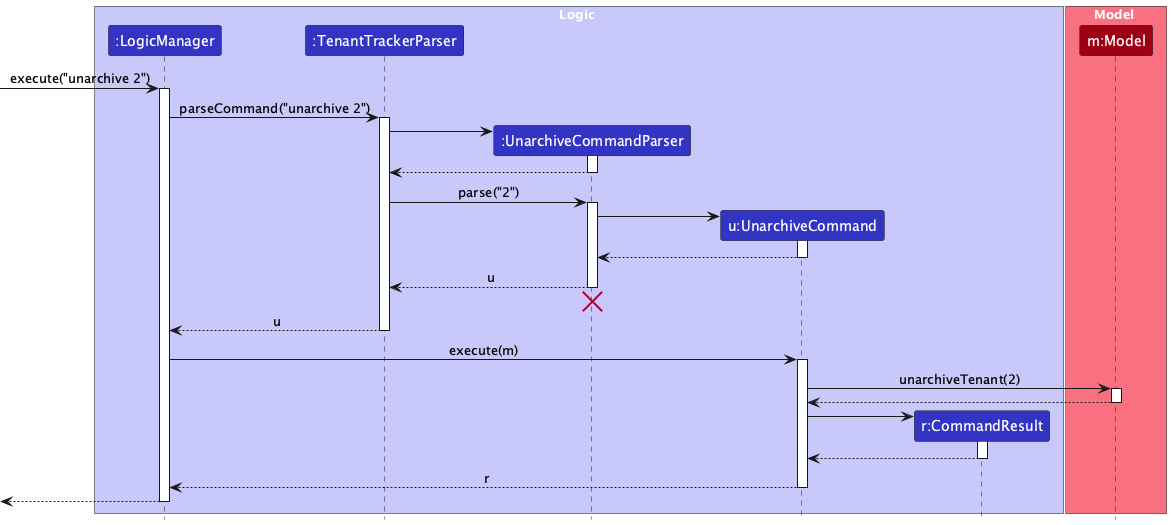
UnarchiveCommand:
- The user enters the command
unarchive 2. - The
Logiccomponent passes the command to theTenantTrackerParser, which uses theUnarchiveCommandParserto parse the input. - The
UnarchiveCommandis created with the index2and executed by theLogicManager. - The
UnarchiveCommandcallsModel#unarchiveTenant()to update theisArchivedproperty of the 2nd tenant. - The UI updates to reflect the change, and a success message is displayed.
- The user enters the command
-
ToggleArchiveCommand:
- The user enters the command
togglearchive. - The
Logiccomponent directly creates theToggleArchiveCommandand executes it. - The
ToggleArchiveCommandcallsModel#toggleArchiveView()to switch the view between archived and active tenants. - The UI updates to reflect the change.
- The user enters the command
Sequence Diagram
The following sequence diagram shows how the archive command is executed:
The following sequence diagram shows how the unarchive command is executed:
The following sequence diagram shows how the togglearchive command is executed:
Design Considerations
Aspect: How the archive/unarchive/toggle operations are implemented
-
Alternative 1 (current choice): Use a
BooleanProperty isArchivedin theTenantclass.-
Pros: Simple to implement and integrates well with the existing
Tenantmodel. - Cons: Requires filtering logic in the UI to hide archived tenants.
-
Pros: Simple to implement and integrates well with the existing
-
Alternative 2: Move archived tenants to a separate list.
- Pros: Clearly separates active and archived tenants.
- Cons: Increases complexity in managing multiple lists and commands.
Command Formats
archive INDEX
- INDEX: The index of the tenant in the active list to be archived.
unarchive INDEX
- INDEX: The index of the tenant in the archived list to be unarchived.
togglearchive
- Toggles the view between archived and active tenants.
Examples
archive 3
- Archives the 3rd tenant in the active list.
unarchive 2
- Unarchives the 2nd tenant in the archived list.
togglearchive
- Switches the view between archived and active tenants.
Notes
- Archived tenants are hidden from the default tenant list but can be accessed using the
togglearchivecommand. - The
isArchivedproperty ensures that the tenant’s data is retained for future reference. - The
togglearchivecommand does not modify any tenant data; it only changes the view. - Archiving works on the active list from both the displayed active list and the displayed archived list.
- Unarchiving works on the archived list from both the displayed active list and the displayed archived list.
- Only the
unarchivecommand works on the tenants in the archived list.
Paid/Unpaid Tenants
Implementation
The PaidCommand and UnpaidCommand allow users to manage the payment status of tenants. These commands are useful for landlords who want to track which tenants have paid their rent and which have not.
- The
PaidCommandmarks a tenant as paid. - The
UnpaidCommandmarks a tenant as unpaid.
These commands are implemented as part of the Command hierarchy. They interact with the Model component to update or retrieve the Tenant’s isPaid property.
Key Classes and Methods
-
PaidCommand:- Executes the operation to mark a tenant as paid.
- Implements the
Commandinterface. - Contains the tenant’s phone number to identify the tenant.
-
UnpaidCommand:- Executes the operation to mark a tenant as unpaid.
- Implements the
Commandinterface. - Contains the tenant’s phone number to identify the tenant.
-
PaidCommandParser:- Parses user input to create a
PaidCommandobject.
- Parses user input to create a
-
UnpaidCommandParser:- Parses user input to create an
UnpaidCommandobject.
- Parses user input to create an
-
Model:- Provides the
markTenantAsPaid()andunmarkTenantAsPaid()methods to update theTenant’sisPaidproperty.
- Provides the
-
Tenant:- Contains the
BooleanProperty isPaidfield, which is updated when a tenant is marked as paid or unpaid.
- Contains the
How It Works
-
User Input:
- For
PaidCommand: The user enters a command likepaid 98765432to mark the tenant with the phone number98765432as paid. - For
UnpaidCommand: The user enters a command likeunpaid 98765432to mark the tenant with the phone number98765432as unpaid.
- For
-
Parsing:
- The
PaidCommandParserparses the input and creates aPaidCommandobject with the specified phone number. - The
UnpaidCommandParserparses the input and creates anUnpaidCommandobject with the specified phone number.
- The
-
Execution:
- The
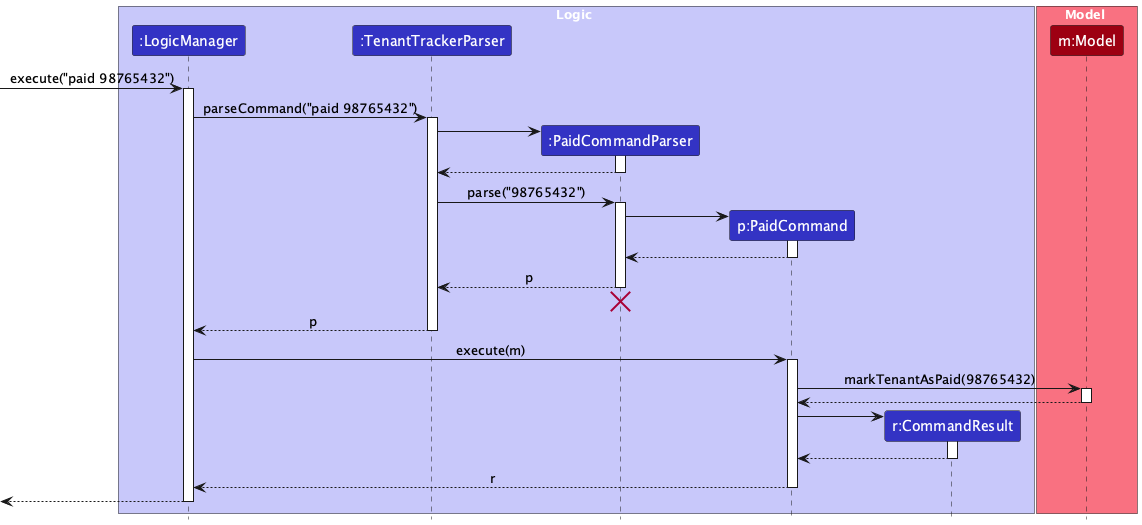
PaidCommandretrieves the tenant from theModelusing the phone number and updates theisPaidproperty totrueby callingModel#markTenantAsPaid(). - The
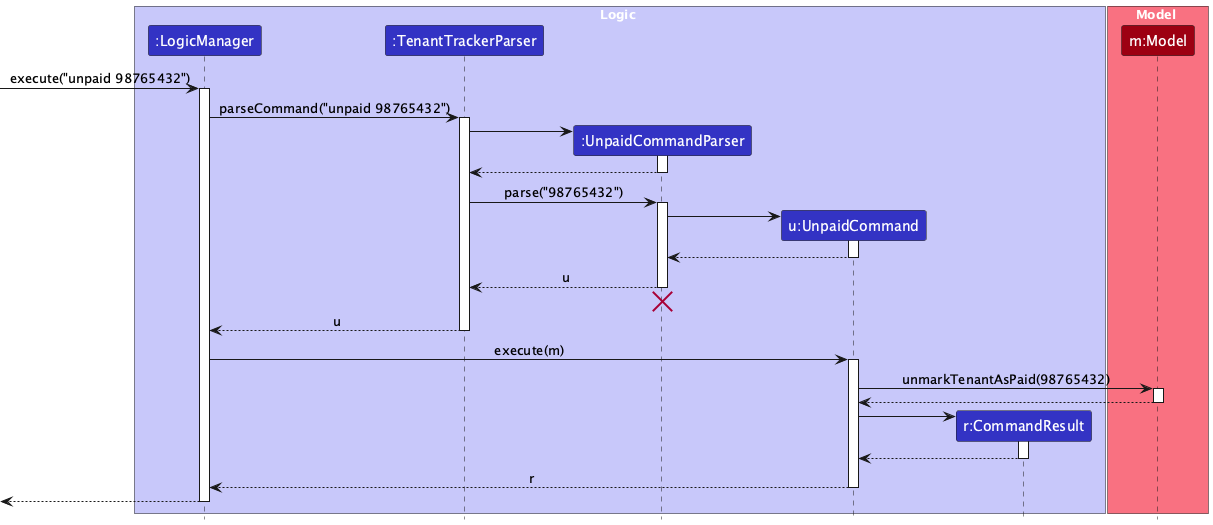
UnpaidCommandretrieves the tenant from theModelusing the phone number and updates theisPaidproperty tofalseby callingModel#unmarkTenantAsPaid().
- The
-
Feedback:
- A success message is displayed to the user, confirming the operation.
Example Usage Scenarios
-
PaidCommand:
- The user enters the command
paid 98765432. - The
Logiccomponent passes the command to theTenantTrackerParser, which uses thePaidCommandParserto parse the input. - The
PaidCommandis created with the phone number98765432and executed by theLogicManager. - The
PaidCommandcallsModel#markTenantAsPaid()to update theisPaidproperty of the tenant. - The UI updates to reflect the change, and a success message is displayed.
- The user enters the command
-
UnpaidCommand:
- The user enters the command
unpaid 98765432. - The
Logiccomponent passes the command to theTenantTrackerParser, which uses theUnpaidCommandParserto parse the input. - The
UnpaidCommandis created with the phone number98765432and executed by theLogicManager. - The
UnpaidCommandcallsModel#unmarkTenantAsPaid()to update theisPaidproperty of the tenant. - The UI updates to reflect the change, and a success message is displayed.
- The user enters the command
Sequence Diagram
The following sequence diagram shows how the paid command is executed:
The following sequence diagram shows how the unpaid command is executed:
Design Considerations
Aspect: How the paid/unpaid operations are implemented
-
Alternative 1 (current choice): Use a
BooleanProperty isPaidin theTenantclass.-
Pros: Simple to implement and integrates well with the existing
Tenantmodel. - Cons: Requires filtering logic in the UI to display tenants based on payment status.
-
Pros: Simple to implement and integrates well with the existing
-
Alternative 2: Maintain separate lists for paid and unpaid tenants.
- Pros: Clearly separates paid and unpaid tenants.
- Cons: Increases complexity in managing multiple lists and commands.
Command Formats
paid PHONE
- PHONE: The phone number of the tenant to be marked as paid.
unpaid PHONE
- PHONE: The phone number of the tenant to be marked as unpaid.
Examples
paid 98765432
- Marks the tenant with the phone number
98765432as paid.
unpaid 98765432
- Marks the tenant with the phone number
98765432as unpaid.
Notes
- The phone number must belong to an existing tenant.
- The phone number should be a valid Singaporean phone number exactly 8 digits long and starting with 6, 8 or 9.
- If the tenant is already marked as paid or unpaid, an appropriate error message is displayed.
- The
isPaidproperty ensures that the tenant’s payment status is tracked accurately.
Filter Tenants
Implementation
The FilterCommand allows users to filter tenants based on their address. This feature is useful for landlords who want to quickly identify tenants residing at specific locations.
- The
FilterCommandfilters tenants whose addresses contain the specified keywords. - The
FilterCommandParserparses the user input to create aFilterCommandobject. - The
Modelcomponent provides theupdateFilteredTenantList()method to apply the filtering logic.
Key Classes and Methods
-
FilterCommand:- Executes the filtering operation.
- Implements the
Commandinterface. - Contains the filtering predicate.
-
FilterCommandParser:- Parses user input to create a
FilterCommandobject.
- Parses user input to create a
-
Model:- Provides the
updateFilteredTenantList()method to apply the filtering logic.
- Provides the
-
AddressContainsKeywordsPredicate:- Evaluates whether a tenant’s address contains the specified keywords.
How It Works
-
User Input:
- The user enters a command like
filter Kent Ridgeto filter tenants whose addresses contain the keywords “Kent” and “Ridge”.
- The user enters a command like
-
Parsing:
- The
FilterCommandParserparses the input and creates aFilterCommandobject with anAddressContainsKeywordsPredicatecontaining the specified keywords.
- The
-
Execution:
- The
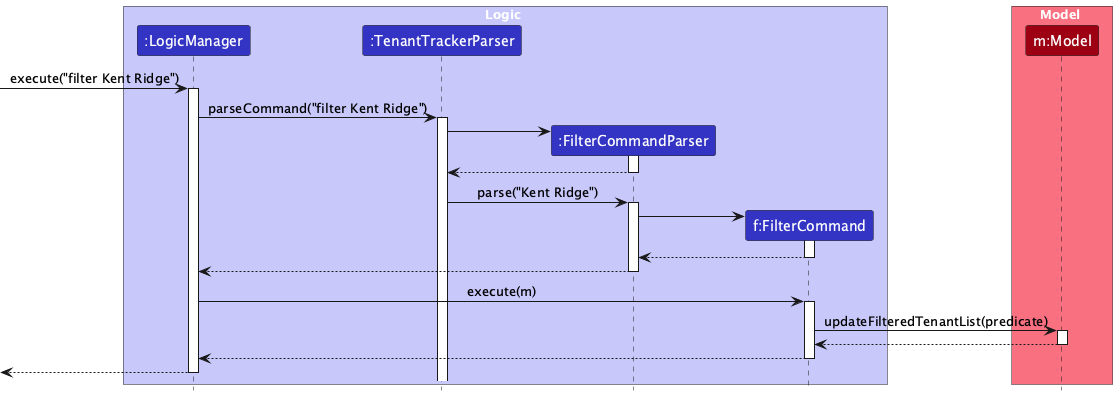
FilterCommandcallsModel#updateFilteredTenantList()with the predicate to filter tenants based on their addresses.
- The
-
Feedback:
- The filtered list of tenants is displayed to the user.
Search Details
- The search is NOT case-sensitive. For example,
Lower Kent Ridgewill matchlower kent ridge. - The order of the keywords does not matter. For example,
Kent Ridge Lowerwill matchLower Kent Ridge. - Only the address is searched.
-
Prefixes of words or postal codes will be matched. For example, an address with
Kentin it will satisfy the commandfilter Kenand an address withS229220in it will satisfy the commandfilter S229. However, an address withentin it will NOT satisfy the commandfilter Kent. - Tenants with addresses matching at least one keyword will be returned (i.e.
ORsearch). For example,Lower Kent Ridgewill returnLower Arab Street,Kent Ridge.
Example Usage Scenarios
-
FilterCommand:
- The user enters the command
filter Kent Ridge. - The
Logiccomponent passes the command to theTenantTrackerParser, which uses theFilterCommandParserto parse the input. - The
FilterCommandis created with the keywordsKentandRidgeand executed by theLogicManager. - The
FilterCommandcallsModel#updateFilteredTenantList()to filter tenants whose addresses contain the keywords. - The UI updates to display the filtered list of tenants.
- The user enters the command
Examples
-
filter Kent Ridge:- Returns tenants with addresses like
Lower Kent Ridge,Upper Kent Ridge,Kent Road, andRidge View.
- Returns tenants with addresses like
-
filter S229:- Returns tenants with addresses containing postal codes like
S229220.
- Returns tenants with addresses containing postal codes like
Sequence Diagram
The following sequence diagram shows how the filter command is executed:
Design Considerations
Aspect: How the filtering operation is implemented
-
Alternative 1 (current choice): Use predicates to filter the tenant list.
-
Pros: Simple to implement and integrates well with the existing
Modelcomponent. - Cons: Requires careful handling of multiple keywords to ensure accurate filtering.
-
Pros: Simple to implement and integrates well with the existing
-
Alternative 2: Create separate filtered lists for each keyword.
- Pros: Simplifies the filtering logic for individual keywords.
- Cons: Increases complexity in managing multiple lists and combining results.
Command Formats
filter KEYWORD [MORE_KEYWORDS]...
- KEYWORD: A keyword to match against tenant addresses.
Examples
filter Kent Ridge
- Filters tenants whose addresses contain the keywords “Kent” and “Ridge”.
filter S119077
- Filters tenants whose addresses contain the postal code “S119077”.
Notes
- Keywords are case-insensitive.
- If no tenants match the criteria, an appropriate message is displayed.
Map Tenants
Implementation
The MapCommand allows users to view the location of a tenant’s address on Google Maps. This feature is useful for landlords who want to quickly locate a tenant’s property.
- The
MapCommandgenerates a Google Maps URL based on the tenant’s address. - The
MapCommandParserparses the user input to create aMapCommandobject. - The
Modelcomponent provides access to the tenant’s address.
Key Classes and Methods
-
MapCommand:- Executes the operation to generate and open the Google Maps URL.
- Implements the
Commandinterface. - Contains the tenant’s index to identify the tenant.
-
MapCommandParser:- Parses user input to create a
MapCommandobject.
- Parses user input to create a
-
Model:- Provides access to the tenant’s address using the tenant’s index.
-
Address:- Represents the tenant’s address, which is encoded into a URL-friendly format.
How It Works
-
User Input:
- The user enters a command like
map 3to view the location of the 3rd tenant’s address on Google Maps.
- The user enters a command like
-
Parsing:
- The
MapCommandParserparses the input and creates aMapCommandobject with the specified tenant index.
- The
-
Execution:
- The
MapCommandretrieves the tenant’s address from theModelusing the index. - The address is URL-encoded and appended to the Google Maps base URL.
- The generated URL is opened in the user’s default web browser.
- The
-
Feedback:
- A success message is displayed to the user, confirming the operation.
Example Usage Scenarios
-
MapCommand:
- The user enters the command
map 3. - The
Logiccomponent passes the command to theTenantTrackerParser, which uses theMapCommandParserto parse the input. - The
MapCommandis created with the index3and executed by theLogicManager. - The
MapCommandretrieves the address of the 3rd tenant from theModel. - The address is URL-encoded, and the Google Maps URL is generated and opened in the browser.
- A success message is displayed to the user.
- The user enters the command
Sequence Diagram
The following sequence diagram shows how the map command is executed:
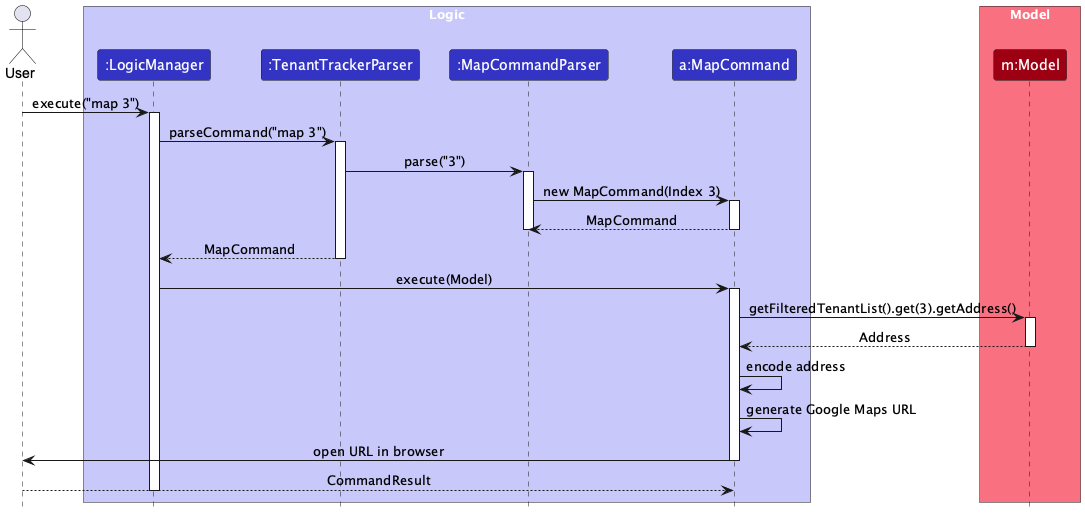
Design Considerations
Aspect: How the map operation is implemented
-
Alternative 1 (current choice): Use the tenant’s address to generate a Google Maps URL.
-
Pros: Simple to implement and integrates well with the existing
Tenantmodel. - Cons: Requires the tenant’s address to be accurate and complete.
-
Pros: Simple to implement and integrates well with the existing
-
Alternative 2: Use a third-party geocoding API to validate and fetch coordinates.
- Pros: Ensures the address is valid and provides precise location data.
- Cons: Increases complexity and introduces dependency on an external API.
Command Formats
map INDEX
- INDEX: The index of the tenant in the displayed list whose address will be mapped.
Examples
map 3
- Opens the Google Maps location of the 3rd tenant’s address.
Notes
- The tenant’s address must be valid and complete for the Google Maps URL to work.
- If the tenant’s index is invalid, an appropriate error message is displayed.
[Proposed] Undo/redo feature
Proposed Implementation
The proposed undo/redo mechanism is facilitated by VersionedTenantTracker. It extends TenantTracker with an undo/redo
history, stored internally as an tenantTrackerStateList and currentStatePointer. Additionally, it implements the
following operations:
-
VersionedTenantTracker#commit()— Saves the current tenant tracker state in its history. -
VersionedTenantTracker#undo()— Restores the previous tenant tracker state from its history. -
VersionedTenantTracker#redo()— Restores a previously undone tenant tracker state from its history.
These operations are exposed in the Model interface as Model#commitTenantTracker(), Model#undoTenantTracker()
and Model#redoTenantTracker() respectively.
Given below is an example usage scenario and how the undo/redo mechanism behaves at each step.
Step 1. The user launches the application for the first time. The VersionedTenantTracker will be initialized with the
initial tenant tracker state, and the currentStatePointer pointing to that single tenant tracker state.
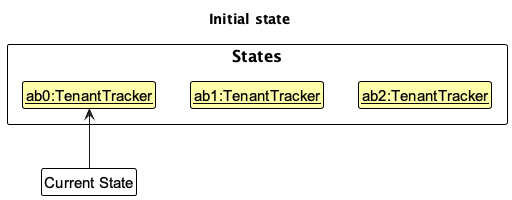
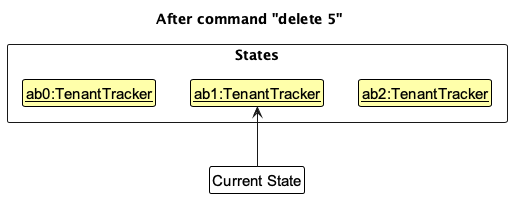
Step 2. The user executes delete 5 command to delete the 5th person in the tenant tracker. The delete command
calls Model#commitTenantTracker(), causing the modified state of the tenant tracker after the delete 5 command executes
to be saved in the tenantTrackerStateList, and the currentStatePointer is shifted to the newly inserted tenant tracker
state.
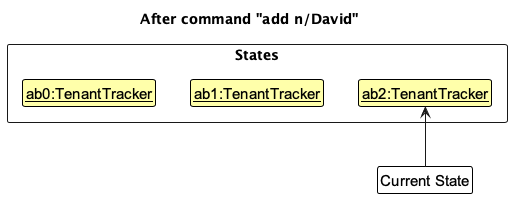
Step 3. The user executes add givenN/David … to add a new person. The add command also
calls Model#commitTenantTracker(), causing another modified tenant tracker state to be saved into
the tenantTrackerStateList.
Note: If a command fails its execution, it will not call Model#commitTenantTracker(), so the tenant tracker state will not be saved into the tenantTrackerStateList.
Step 4. The user now decides that adding the person was a mistake, and decides to undo that action by executing
the undo command. The undo command will call Model#undoTenantTracker(), which will shift the currentStatePointer
once to the left, pointing it to the previous tenant tracker state, and restores the tenant tracker to that state.
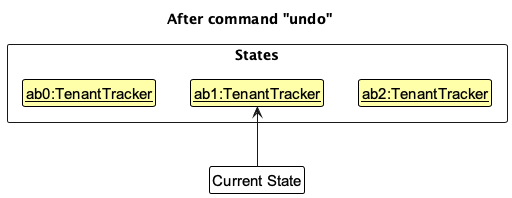
Note: If the currentStatePointer is at index 0, pointing to the initial TenantTracker state, then there are no previous TenantTracker states to restore. The undo command uses Model#canUndoTenantTracker() to check if this is the case. If so, it will return an error to the user rather
than attempting to perform the undo.
The following sequence diagram shows how an undo operation goes through the Logic component:
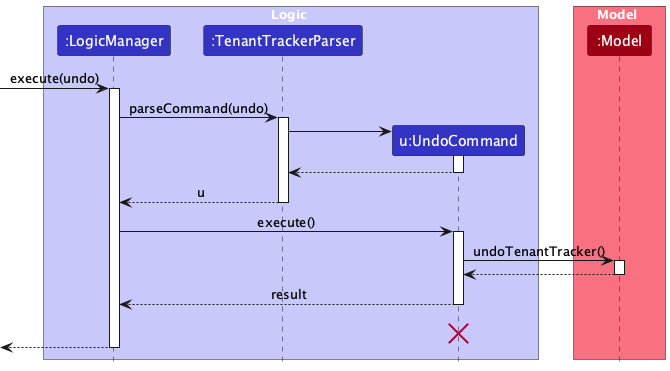
Note: The lifeline for UndoCommand should end at the destroy marker (X) but due to a limitation of PlantUML, the lifeline reaches the end of diagram.
Similarly, how an undo operation goes through the Model component is shown below:
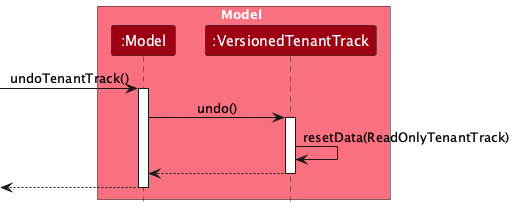
The redo command does the opposite — it calls Model#redoTenantTracker(), which shifts the currentStatePointer once
to the right, pointing to the previously undone state, and restores the tenant tracker to that state.
Note: If the currentStatePointer is at index tenantTrackerStateList.size() - 1, pointing to the latest tenant tracker state, then there are no undone TenantTracker states to restore. The redo command uses Model#canRedoTenantTracker() to check if this is the case. If so, it will return an error to the user rather than attempting to perform the redo.
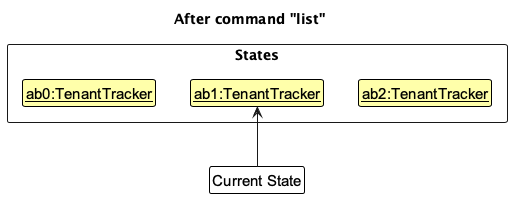
Step 5. The user then decides to execute the command list. Commands that do not modify the tenant tracker, such
as list, will usually not call Model#commitTenantTracker(), Model#undoTenantTracker() or Model#redoTenantTracker().
Thus, the tenantTrackerStateList remains unchanged.
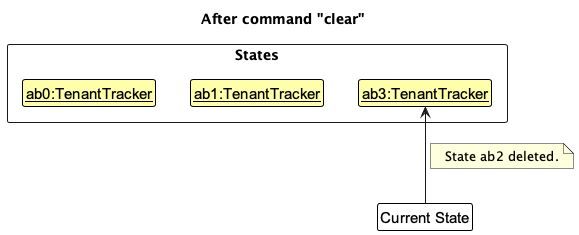
Step 6. The user executes clear, which calls Model#commitTenantTracker(). Since the currentStatePointer is not
pointing at the end of the tenantTrackerStateList, all tenant tracker states after the currentStatePointer will be
purged. Reason: It no longer makes sense to redo the add givenN/David … command. This is the behavior that most modern
desktop applications follow.
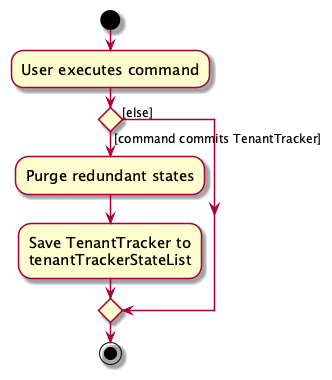
The following activity diagram summarizes what happens when a user executes a new command:
Design considerations
Aspect: How undo & redo executes:
-
Alternative 1 (current choice): Saves the entire tenant tracker.
- Pros: Easy to implement.
- Cons: May have performance issues in terms of memory usage.
-
Alternative 2: Individual command knows how to undo/redo by
itself.
- Pros: Will use less memory (e.g. for
delete, just save the tenant being deleted). - Cons: We must ensure that the implementation of each individual command are correct.
- Pros: Will use less memory (e.g. for
Documentation, logging, testing, configuration, dev-ops
Appendix: Requirements
Product scope
Target user profile: Our target users are landlords who list their multiple properties to rent on a platform like Airbnb.
Value proposition: TenantTrack provides fast and efficient contact management for landlords handling multiple rental properties. Optimized for power users who prefer a CLI, it enables quick access, organization, and retrieval of tenant and client details, streamlining communication and reducing administrative hassle while retaining the benefits of a GUI.
User stories
Priorities: High (must have) - * * *, Medium (nice to have) - * *, Low (unlikely to have) - *
| Priority | As a … | I want to … | So that I can… |
|---|---|---|---|
* * * |
Landlord | list my tenants’ names | get in touch with them for property-related matters. |
* * * |
Landlord | list my tenants’ phone numbers | get in touch with them for property-related matters. |
* * * |
Landlord | list my tenants’ emails | get in touch with them for property-related matters. |
* * * |
Landlord | list my tenants’ properties | get in touch with them for property-related matters. |
* * * |
Landlord | delete tenant name when a lease ends | keep my database current. |
* * * |
Landlord | delete tenant email when a lease ends | keep my database current. |
* * * |
Landlord | delete tenant contact number when a lease ends | keep my database current. |
* * * |
Landlord | delete tenant property of residence when a lease ends | keep my database current. |
* * * |
Landlord | add a new tenant name | record tenant’s name. |
* * * |
Landlord | add a new tenant phone number | record tenant’s phone number. |
* * * |
Landlord | add a new tenant email | record tenant’s email. |
* * * |
Landlord | add a new tenant property | record tenant’s property. |
* * |
Landlord | sort tenants by attributes like gender | derive the demographics for the tenants. |
* * |
Landlord | tag tenants with custom tags | categorize and manage them effectively. |
* * |
Landlord | update property details | ensure important details like lease information can be updated. |
* * |
Landlord | export tenant contact list | integrate them with external CRM or communication tools. |
* * |
Landlord | mark tenants as active or inactive | distinguish between current and past tenants without deleting records. |
* * |
Landlord | add multiple phone numbers or emails for a tenant | contact them through different channels. |
* * |
Landlord | set a primary contact for a property with multiple tenants | know who to reach first in case of urgent matters. |
* * |
Landlord | add a profile picture to a tenant’s contact details | visually recognize them easily. |
* * |
Landlord | undo accidental deletions of contacts | avoid losing important information. |
* * |
Landlord | archive past tenants instead of deleting them | keep historical records without cluttering my main contact list. |
* * |
Landlord | set up auto-complete for addresses | enter property details faster. |
* * |
Landlord | retrieve an address through tenant name and phone number | know where the tenant is staying. |
* * |
Landlord | check for validity of tenant occupancy | confirm whether the tenant is legally living there. |
* * |
Landlord | retrieve lease agreements | check the specifics on the agreement. |
* * |
Landlord | retrieve addresses through tenant history | track who lived in which apartment over time. |
* * |
Landlord | retrieve tenant’s past rental history | know whether a tenant has rented with me before. |
* * |
Landlord | import tenant contacts from a CSV file | quickly set up my database. |
* |
Landlord of multiple properties | group my tenants/properties by building/neighborhood/zone | better organize my properties and visits. |
* |
Landlord | update tenant contact details (phone/email) | remain in touch with my tenants in the event their contacts change. |
* |
Landlord | access analytics like total income from properties | better manage my personal finances. |
* |
Landlord | see which tenants’ rents are overdue or coming up in the next week | remind them to pay rent on time. |
* |
Landlord with properties housing multiple people | assign multiple tenant contacts to one property | contact any of the residents of a single property easily. |
* |
Landlord with properties housing multiple people | filter properties by occupancy status | access which properties are available for rent so I can list them on the market. |
* |
Landlord | search for a tenant’s contact details by name | quickly get their contact to communicate with them efficiently. |
* |
Landlord | add the property a tenant is staying at to their contact details | know which property the tenant is renting. |
* |
Landlord | add a duration of stay to a tenant’s contact detail | effectively manage my rental scheduling. |
Use cases
(For all use cases below, the System is the TenantTrack and the Actor is the user, unless specified
otherwise)
Use case: Add a new tenant (Create)
MSS
- Landlord requests to add a new tenant.
- System prompts for tenant details (name, phone number, email, property, etc.).
- Landlord enters the tenant details and confirms.
-
System saves the new tenant.
Use case ends.
Extensions
- 2a. Required fields are missing.
-
2a1. System shows an error message.
Use case resumes at step 2.
-
- 3a. The tenant already exists.
-
3a1. System shows a warning and asks for confirmation.
Use case resumes at step 2.
-
Use case: Search for a tenant by name (Read)
MSS
- Landlord requests to search for a tenant by name.
-
System displays matching tenant details.
Use case ends.
Extensions
- 2a. No matching tenant is found.
-
2a1. System shows an error message.
Use case ends.
-
Use case: Update tenant contact details (Update)
MSS
- Landlord requests to update a tenant’s contact details.
- System displays the tenant’s current contact details.
- Landlord updates phone number and/or email.
-
System saves the updated contact details.
Use case ends.
Extensions
- 2a. The tenant does not exist.
-
2a1. System shows an error message.
Use case ends.
-
- 3a. The new contact details are in an invalid format.
-
3a1. System shows an error message.
Use case resumes at step 2.
-
Use case: Delete a tenant (Delete)
MSS
- Landlord requests to delete a tenant.
- System asks for confirmation.
- Landlord confirms the deletion.
-
System deletes the tenant record.
Use case ends.
Extensions
- 2a. The tenant does not exist.
-
2a1. System shows an error message.
Use case ends.
-
- 3a. The tenant has active lease agreements.
-
3a1. System prevents deletion and notifies the landlord.
Use case ends.
-
Use case: See overdue or upcoming rent payments
MSS
- Landlord requests a list of tenants with overdue or upcoming rent payments.
-
System displays the list of tenants with due dates.
Use case ends.
Extensions
- 2a. No tenants have overdue or upcoming rent.
-
2a1. System shows a message indicating no upcoming payments.
Use case ends.
-
Use case: Archive a tenant
MSS
- Landlord requests to archive a tenant.
-
System archives the tenant and updates the tenant list.
Use case ends.
Extensions
- 1a. The tenant does not exist.
-
1a1. System shows an error message.
Use case ends.
-
Use case: Unarchive a tenant
MSS
- Landlord requests to unarchive a tenant.
-
System unarchives the tenant and updates the tenant list.
Use case ends.
Extensions
- 1a. The tenant does not exist.
-
1a1. System shows an error message.
Use case ends.
-
Use case: Toggle between archived and active tenants
MSS
- Landlord requests to toggle the view between archived and active tenants.
-
System switches the view.
Use case ends.
Use case: Mark a tenant as paid
MSS
- Landlord requests to mark a tenant as paid.
-
System updates the tenant’s payment status to “paid”.
Use case ends.
Extensions
- 1a. The tenant does not exist.
-
1a1. System shows an error message.
Use case ends.
-
Use case: Mark a tenant as unpaid
MSS
- Landlord requests to mark a tenant as unpaid.
-
System updates the tenant’s payment status to “unpaid”.
Use case ends.
Extensions
- 1a. The tenant does not exist.
-
1a1. System shows an error message.
Use case ends.
-
Use case: Filter tenants by address
MSS
- Landlord requests to filter tenants by address keywords.
-
System displays tenants whose addresses match the keywords.
Use case ends.
Extensions
- 1a. No tenants match the filter criteria.
-
1a1. System shows a message indicating no matches.
Use case ends.
-
Use case: View a tenant’s address on a map
MSS
- Landlord requests to view a tenant’s address on a map.
-
System generates a Google Maps URL for the tenant’s address and opens it in the browser.
Use case ends.
Extensions
- 1a. The tenant does not exist.
-
1a1. System shows an error message.
Use case ends.
-
- 1b. The tenant’s address is invalid.
-
1b1. System shows an error message.
Use case ends.
-
Non-Functional Requirements
- Should work on any mainstream OS as long as it has Java
17or above installed. - Should be able to hold up to 1000 persons without a noticeable sluggishness in performance for typical usage.
- A user with above average typing speed for regular English text (i.e. not code, not system admin commands) should be able to accomplish most of the tasks faster using commands than using the mouse.
- The final product should be an evolution of the given codebase, with incremental changes leading to a working product at each step. Full code replacement is allowed if done gradually.
- The product should cater to users who type fast and prefer keyboard input over other means of interaction.
- The software should be a single-user application, meaning no multi-user access, shared file storage, or concurrent users on the same system.
- The development process should follow a breadth-first incremental approach, ensuring consistent progress throughout the project duration.
- All data should be stored locally in a human-editable text file, allowing advanced users to manipulate data directly.
- A database management system (DBMS) should not be used to store data, encouraging object-oriented data management.
- The software must follow the object-oriented programming (OOP) paradigm, though minor deviations for justifiable reasons are acceptable.
- The application should be platform-independent, working on Windows, Linux, and macOS without relying on OS-specific features.
- The software should be compatible with Java 17 and must not require any other Java version to run.
- The application should be portable and run without requiring an installer.
- The software should not depend on a remote server, ensuring usability even after the project ends.
- Third-party libraries, frameworks, or services are allowed only if they are free, open-source, have permissive licenses, do not require user installation, and comply with all other constraints.
- The GUI should work smoothly at standard screen resolutions (1920x1080 and above) and scale settings (100% and 125%), while remaining usable at 1280x720 and 150% scaling.
- The entire application should be packaged into a single JAR file, or if necessary, a single ZIP file containing all required resources.
- The deliverable file sizes should not exceed 100MB for the application and 15MB per PDF document to ensure ease of downloading and testing.
- The user guide and developer guide should be PDF-friendly, avoiding expandable panels, embedded videos, and animated GIFs.
- The application should be optimized for a command-line interface (CLI) first, ensuring fast command-based input for target users while allowing visual feedback through a GUI.
- The product should maintain realistic use cases, targeting scenarios where a standalone desktop application is a viable solution.
- The system should ensure data integrity by validating inputs and preventing invalid data from being saved.
- The application should include automated tests to ensure high code quality and prevent regressions.
- The software should be modular to facilitate future enhancements and maintenance.
- The application should provide clear error messages for invalid user inputs to ensure a smooth user experience.
- The system should recover gracefully from unexpected crashes or corrupted data files.
- The application should include logging functionality to assist in debugging and tracking user actions.
- The software should minimize memory usage and avoid memory leaks.
- The application should support localization to allow easy adaptation for different languages and regions.
Glossary
- Address: A tenant’s location, which must include a valid 6-digit postal code.
- Archive: The process of marking a tenant as inactive while retaining their data for future reference.
- CLI (Command-Line Interface): A text-based interface where users interact with the application by typing commands.
- Command Box: The input field in the GUI where users type commands to interact with the application.
- Command Parser: A component responsible for interpreting user input and creating corresponding command objects.
- Filter: A command used to narrow down the list of tenants based on specific criteria, such as address keywords.
- GUI (Graphical User Interface): A visual interface that allows users to interact with the application using graphical elements like buttons and menus.
- Human-editable file: A text file that can be directly modified by users without requiring specialized tools.
- Index: A positive integer representing the position of an item in a displayed list, starting from 1.
- JavaFX: A software platform used to create and deliver desktop applications with a graphical user interface.
- JSON (JavaScript Object Notation): A lightweight data-interchange format used to store application data.
- Landlord: The primary user of TenantTrack, responsible for managing multiple rental properties and tenant details.
- Mainstream OS: Windows, Linux, Unix, MacOS.
- ObservableList: A list that allows listeners to track changes to its elements, commonly used in the UI.
- Paid Icon: A visual indicator used to mark tenants who have paid their rent.
- PlantUML: A tool used to create UML diagrams for documentation purposes.
- Private contact detail: A contact detail that is not meant to be shared with others.
- Property: A rental unit or building managed by the landlord and associated with one or more tenants.
- Rental Payment: The periodic payment made by a tenant to the landlord for occupying a property.
- Tag: A label assigned to a tenant for categorization purposes.
- Tenant: An individual renting a property from a landlord. Each tenant has associated details such as name, phone number, email, and address.
Appendix: Instructions for manual testing
Given below are instructions to test the app manually.
Note: These instructions only provide a starting point for testers to work on;
testers are expected to do more exploratory testing.
Launch and shutdown
-
Initial launch
-
Download the jar file and copy it into an empty folder.
-
Double-click the jar file.
Expected: Shows the GUI with a set of sample contacts. The window size may not be optimum.
-
-
Saving window preferences
-
Resize the window to an optimum size. Move the window to a different location. Close the window.
-
Re-launch the app by double-clicking the jar file.
Expected: The most recent window size and location are retained.
-
-
Launching with missing dependencies
-
Remove Java from the system or install an incompatible version of Java.
-
Attempt to launch the application.
Expected: The application does not start, and an error message is displayed.
-
Deleting a tenant
-
Deleting a tenant while all tenants are being shown
-
Prerequisites: List all tenants using the
listcommand. Multiple tenants in the list. -
Test case:
delete 1
Expected: First tenant is deleted from the list. Details of the deleted tenant are shown in the status message. Timestamp in the status bar is updated. -
Test case:
delete 0
Expected: No tenant is deleted. Error details are shown in the status message. Status bar remains the same. -
Other incorrect delete commands to try:
delete,delete x,...(where x is larger than the list size)
Expected: Similar to previous.
-
Adding a tenant
-
Adding a tenant with valid details
-
Test case:
add givenN/ John familyN/ Doe phone/ 98765432 email/ johnd@example.com address/ John street, block 123, #01-01 S123456
Expected: A new tenant named John Doe is added to the list. A success message is displayed. -
Test case:
add givenN/ John familyN/ Doe phone/ 12345678 email/ johnd@example.com address/ John street, block 123, #01-01 S123456
Expected: No tenant is added as12345678is an invalid phone number. Error details are shown in the status message.
-
Archiving a tenant
-
Archiving a tenant
-
Prerequisites: List all tenants using the
listcommand. Multiple tenants in the list. -
Test case:
archive 1
Expected: First tenant is archived and is now in the archived list. A success message is displayed. -
Test case:
archive 0
Expected: No tenant is archived as0is an invalid index. Error details are shown in the status message.
-
Unarchiving a tenant
-
Unarchiving a tenant
-
Prerequisites: Toggle to the archived list view using the
togglearchivecommand. Ensure at least one tenant is archived. -
Test case:
unarchive 1
Expected: First tenant in the archived list is unarchived and is now in the active list. A success message is displayed. -
Test case:
unarchive 0
Expected: No tenant is unarchived as0is an invalid index. Error details are shown in the status message.
-
Toggling between active and archived views
-
Toggling between active and archived views
-
Prerequisites: Have at least one archived tenant.
-
Test case:
togglearchive
Expected: View changes from active list to archived list or vice versa. A success message is displayed.
-
Editing a tenant
-
Editing a tenant’s details
-
Prerequisites: List all tenants using the
listcommand. Multiple tenants in the list. -
Test case:
edit 1 phone/91234567 email/johndoe@example.com
Expected: First tenant’s phone number and email are updated. Details of the updated tenant are shown in the status message. -
Test case:
edit 1 tag/
Expected: All tags for the first tenant are cleared. Details of the updated tenant are shown in the status message.
-
Filtering tenants by address
-
Filtering tenants by address keywords
-
Prerequisites: List all tenants using the
listcommand. Multiple tenants with different addresses. -
Test case:
filter Kent Ridge
Expected: Displays a list of tenants whose addresses contain “Kent Ridge”. -
Test case:
filter S123
Expected: Displays a list of tenants whose addresses contain “S123”.
-
Marking a tenant as paid
-
Marking a tenant as paid
-
Prerequisites: List all tenants using the
listcommand. Ensure at least one tenant has a valid phone number. -
Test case:
paid 98765432
Expected: The tenant with the phone number98765432is marked as paid. A success message is displayed. -
Test case:
paid 12345678
Expected: No tenant is marked as paid as12345678is an invalid number. Error details are shown in the status message.
-
Marking a tenant as unpaid
-
Marking a tenant as unpaid
-
Prerequisites: List all tenants using the
listcommand. Ensure at least one tenant is marked as paid. -
Test case:
unpaid 98765432
Expected: The tenant with the phone number98765432is marked as unpaid. A success message is displayed. -
Test case:
unpaid 12345678
Expected: No tenant is marked as unpaid as12345678is an invalid number. Error details are shown in the status message.
-
Viewing a tenant’s address on Google Maps
-
Viewing a tenant’s address on Google Maps
-
Prerequisites: List all tenants using the
listcommand. Ensure at least one tenant has a valid address. -
Test case:
map 1
Expected: The address of the first tenant is opened in Google Maps. A success message is displayed. -
Test case:
map 0
Expected: No address is opened. Error details are shown in the status message.
-
Listing all tenants
-
Listing all tenants
- Test case:
list
Expected: Displays a list of all tenants in the Tenant Track.
- Test case:
Clearing all tenants
-
Clearing all tenants
- Test case:
clear
Expected: All tenants are removed from the list. A success message is displayed.
- Test case:
Saving data
-
Verifying data is saved automatically
-
Prerequisites: Add a new tenant using the
addcommand. -
Close the application and re-launch it.
Expected: The newly added tenant is still present in the list.
-
-
Dealing with missing/corrupted data files
-
Prerequisites: Locate the
tenanttracker.jsonfile in thedatafolder. -
Delete the file and re-launch the application.
Expected: The application starts with an empty list. -
Corrupt the file by adding invalid JSON content and re-launch the application.
Expected: The application starts with an empty list and creates a new validtenanttracker.jsonfile.
-